
How to Search on IPTV: Complete 2025 Guide to Using Search, Voice Commands & Filters on Firestick
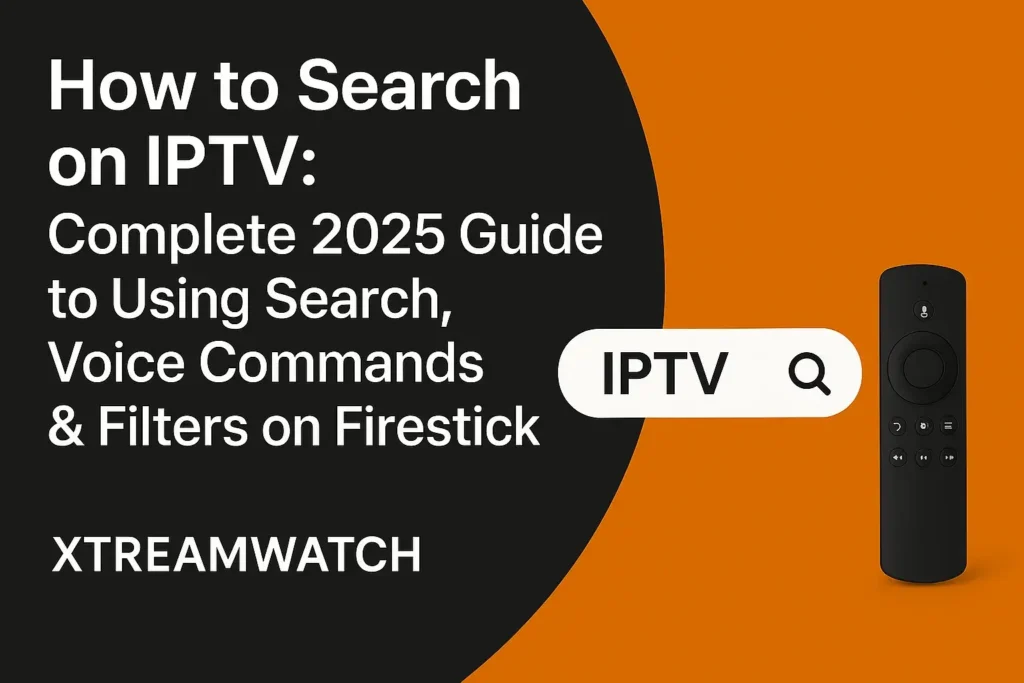
Finding your favorite channels or shows through IPTV search doesn’t have to be complicated. Whether you’re using a Firestick, Smart TV, or Android Box, most IPTV apps now include powerful built-in search features that make discovering new content fast and intuitive.
Bleow, we’ll walk through exactly how to use the IPTV search feature, customize filters, and fix common search issues — so you can spend less time browsing and more time streaming.
Accessing IPTV Search on Your Device
To start searching, you’ll typically use your remote’s magnifying glass icon or voice command button.
Press the search icon on your IPTV interface, or hold the microphone button on your remote if voice control is supported. You can enter specific keywords such as show titles, actors, or genres using the on-screen keyboard and directional buttons.
You can further refine results by applying filters like:
- Language
- Release date
- Category or genre
Most IPTV players such as STBEmu, Perfect Player, TiviMate, and IPTV Smarters Pro now include advanced IPTV search options that make your browsing experience smoother and faster.
Mastering these tools ensures you discover and enjoy new shows, movies, and live channels effortlessly within your IPTV subscription.
✅ Tip: Always test IPTV with a free trial or 24-hour pass before committing to long-term plans.
Setting Up IPTV Search on Your Firestick Device
To make the most of the search IPTV on Firestick feature, your setup should include three key elements:
- A compatible IPTV app
- A properly functioning remote control
- Updated software
When these components are in sync, your IPTV search experience becomes seamless.
1. Install a Compatible IPTV App
Choose an app that supports smart search functionality:
- STBEmu – For users who prefer portal-based IPTV servers.
- TiviMate – Known for quick and intuitive channel search.
- Perfect Player – Offers smooth interface and reliable filtering.
- IPTV Smarters Pro – Provides built-in voice and keyword search options.
2. Use Your Firestick Remote
- Press the magnifying glass icon on the home screen to type keywords.
- Hold the microphone button to perform a voice-based IPTV search.
3. Keep Apps Updated
Regular updates fix bugs and optimize IPTV search performance.
Make sure both your Firestick OS and IPTV app are running their latest versions.
4. Customize Remote Buttons
Some IPTV apps allow custom button mapping. This can make your IPTV search navigation faster and more personalized.
5. Troubleshoot Search Issues
If your IPTV search stops responding:
- Check app compatibility
- Update your Firestick
- Clear cache or reinstall the app
Combining the right app, updated system, and well-configured remote ensures your IPTV search feature works flawlessly.
Using Voice Commands for Quick IPTV Searches
When dealing with thousands of channels, typing every search manually can be slow. Instead, voice commands make it fast and effortless.
Press and hold the microphone button on your Amazon Fire TV or Android TV remote, then say what you’re looking for — a show title, actor, or genre. The system will instantly display matching results.
Each IPTV app has its own level of voice search compatibility, so it’s best to explore your app’s interface to learn which commands are supported.
Keep your apps regularly updated to access improved IPTV search algorithms and voice response accuracy.
When the voice option isn’t available, use the on-screen keyboard and be precise with your terms for faster results. This method eliminates manual scrolling and enhances the overall IPTV browsing experience.
Navigating Search Menus and Applying Filters
Beyond voice control, understanding the visual search menu is essential for accurate results.
Locate the magnifying glass icon in your IPTV player’s interface. From there:
- Use the directional keys on your remote to access the on-screen keyboard.
- Enter search terms such as movie titles, genres, or actor names.
Most IPTV apps let you apply filters such as:
- Genre (Action, Sports, News, Kids, etc.)
- Language
- Release Year or Country
These filters allow you to refine your IPTV search results and quickly find the content you want without endless scrolling. Familiarize yourself with your app’s layout to navigate more efficiently.
Customizing IPTV Search Settings and Creating Watchlists
Once you’ve mastered the basics, it’s time to personalize your IPTV search settings for a better user experience.
Refine Your Search Settings
Many IPTV apps allow you to:
- Choose preferred languages or genres
- Enable predictive search suggestions
- Save your most-used filters for future searches
Build a Custom Watchlist
A watchlist serves as your personal content hub.
You can:
- Add shows or movies directly from search results
- Organize favorites into categories
- Receive alerts for new episodes or similar content
Keeping your watchlist fresh and organized ensures your IPTV search results remain relevant and engaging.
Troubleshooting Common IPTV Search Problems
If your IPTV search function or remote stops responding, follow this quick troubleshooting guide:
1. Restart the App and Device
Reopen your IPTV app and restart your Firestick or Smart TV.
2. Check Internet Connection
A weak connection can cause search errors. Reconnect to a stable Wi-Fi network before retrying.
3. Clear App Cache or Reinstall
Clearing the cache helps fix corrupted temporary files. If issues persist, reinstall the IPTV player.
4. Update Regularly
Developers often enhance IPTV search performance in updates. Ensure your apps and firmware are current.
5. Fix Remote Pairing
If your remote isn’t responding:
- Replace batteries
- Re-pair the remote via Bluetooth settings
- Use your mobile device as a temporary remote
6. Explore Key Mapping Options
Some IPTV players support key remapping, letting you assign shortcuts for search, filter, or watchlist access.
Conclusion:
Mastering the IPTV search feature is essential for effortless content discovery. With proper setup, smart filters, and voice integration, you can navigate through your IPTV library in seconds. Keep your apps and firmware updated, personalize your search preferences, and maintain your playlist to enjoy a smooth streaming experience in 2025.
Frequently Asked Questions (FAQs):
Yes. Most IPTV players include a search feature accessible via the magnifying glass icon or voice command. You can enter keywords, titles, or actor names to find content instantly.
Go to the search icon in your IPTV app, type or say the channel name, and browse the results.
Press the magnifying glass icon on your Firestick home screen or hold the microphone button to perform a voice search directly in your IPTV app.
Check for internet issues, update your app, clear cache, or reinstall the application. Outdated software often causes search problems.
Yes. You can filter results by genre, release date, or language to get more targeted and relevant results.
About Us
Xtreamwatch brings you smooth, high-quality IPTV streaming — live TV, movies, and sports, all in one place. Stream anytime, on any device.
 English
  Deutsch
  Français
  Español
  Italiano
  العربية
  Dansk
Dansk  Nederlands